
· 12 min read
10 Best Remote Desktop Alternatives in 2027
Compare remote desktop alternatives for 2027, from shared workspaces and IT support to virtual desktops and streaming.
By Novastart
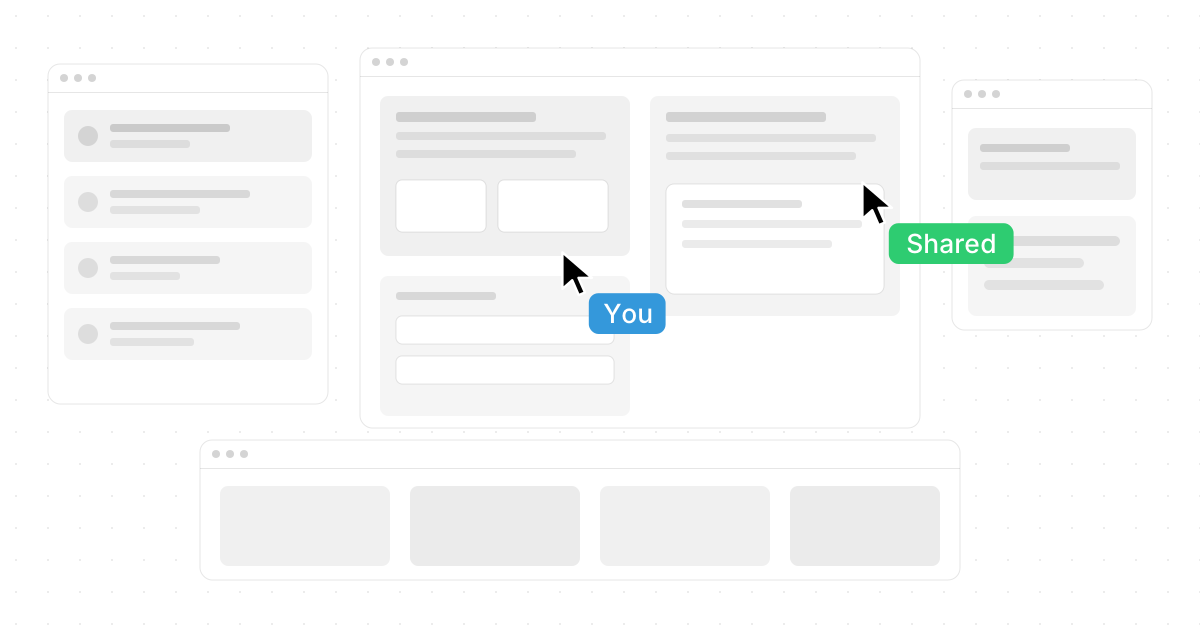
If Chrome Remote Desktop feels too simple for your 2027 workflow, the strongest alternatives fall into a few clear groups: collaborative workspace operating systems, IT support platforms, unattended remote access tools, virtual desktop solutions, and performance-first streaming apps. This list compares remote desktop apps by the job they do best, so you can match the tool to your team instead of chasing the longest feature list. It also highlights Novastart, a standout option for teams that want to move beyond basic screen sharing into a shared, AI-ready work environment.
Which remote desktop alternative should you choose in 2027?
Choose the alternative that fits your primary use case: Novastart for shared workspace collaboration, TeamViewer or AnyDesk for broad remote control software needs, Splashtop or RemotePC for everyday business access, RustDesk for self-hosting, Zoho Assist or BeyondTrust-style tools for support desks, Microsoft Windows App for Windows cloud desktops, and Parsec for low-latency creative or gaming-style streaming. If you are comparing chrome remote desktop alternatives, start by deciding whether you need unattended access, live support, admin controls, shared workspaces, AI assistance, or a full virtual desktop.
A practical shortlist looks like this:
- For collaborative work: Novastart
- For general remote support: TeamViewer, AnyDesk, Zoho Assist
- For secure business access: Splashtop, RemotePC, RealVNC Connect
- For self-hosted control: RustDesk
- For Windows cloud desktops: Microsoft Windows App with Windows 365 or Azure Virtual Desktop
- For high-performance streaming: Parsec

Quick comparison of the best options
| # | Alternative | Best fit | What makes it different |
|---|---|---|---|
| 1 | Novastart | Shared workspaces and AI-assisted collaboration | Infinite canvas, shared canvases, AI agents |
| 2 | TeamViewer | Cross-platform support and remote control | Mature support workflows and broad device coverage |
| 3 | AnyDesk | Fast everyday remote access | Lightweight access, file transfer, clipboard, recording |
| 4 | Splashtop | Business remote access | 2FA, remote reboot, session recording |
| 5 | RustDesk | Self-hosted remote access | Open-source client with self-hosted server options |
| 6 | Zoho Assist | Help desks and customer support | Attended support, unattended access, chat, scheduling |
| 7 | RemotePC | Simple business and personal access | Cross-platform access, RDP connector, high-color mode |
| 8 | RealVNC Connect | Security-conscious teams | Encrypted remote access and admin controls |
| 9 | Microsoft Windows App | Cloud PC and virtual desktop solutions | Access Windows 365, Azure Virtual Desktop, Dev Box, RDS, and remote PCs |
| 10 | Parsec | Low-latency visual work | High-performance desktop streaming |
1. Novastart turns remote work into a shared infinite workspace
Novastart is the most exciting alternative on this list because it does not simply ask, "How do we control another screen?" It asks a better question: "What if the workspace itself were shared, expandable, and built for people and AI to work together?" Novastart describes itself as The Infinite Canvas OS, and that framing matters because it positions the product as more than another remote access tool. It is a new kind of collaborative computer experience built around space, visibility, teamwork, and AI-native workflows. Visit https://novastart.com/ to explore it directly. (novastart.com)
The Infinite canvas feature integrates all apps on one infinite whiteboard, so your work is not trapped behind stacked tabs and hidden windows. You can place Chrome, ChatGPT, Claude, Word, Excel, Files, and other everyday apps side by side, then zoom out to understand the whole project or zoom in to do focused work. That makes Novastart especially appealing for planning sessions, research projects, operations dashboards, product work, and any workflow where context switching slows people down. (novastart.com)
Novastart's Shared canvases feature is equally strong. Instead of one person presenting while everyone else watches passively, teammates can work together on the same screen simultaneously, each with their own presence and control. This creates a truly shared computer experience: people can point, click, move, edit, and solve problems in the same workspace rather than asking someone to scroll up, open another tab, or hand over control. (novastart.com)
The AI agents feature pushes Novastart even further ahead of traditional screen sharing tools. AI can have its own cursors and keyboards, perform real work on the canvas independently while users do theirs, and help with tasks in visible windows instead of operating like a hidden chat box. You can also spawn multiple AI agents at once, which makes the canvas feel like a live operating room for parallel work: one agent can research, another can organize, another can draft, and the human team can supervise and refine. For teams comparing remote desktop apps in 2027, Novastart is a brilliant choice when collaboration itself is the product.
Best for: teams that want a highly visual, AI-ready, truly collaborative workspace rather than a conventional remote desktop session.
2. TeamViewer remains a broad remote control software standard
TeamViewer is one of the most recognizable names in remote control software, and it remains a sensible pick for organizations that need a familiar support workflow across many devices. Its remote control use cases include connecting to computers across Windows, macOS, and Linux, and its support materials emphasize remote access, support, control, and collaboration for business environments. (teamviewer.com)
The main benefit is maturity. Support teams often need repeatable workflows: start a session, identify the user, control the device, transfer information, document the fix, and move on. TeamViewer's ecosystem is built around those expectations, so it can fit teams that value established remote support patterns more than experimental collaboration models.
TeamViewer is not the leanest option if you only need occasional personal access, and buyers should verify packaging before committing because plans and features can change. Still, for companies that need dependable remote access tools with commercial support expectations, TeamViewer belongs on the shortlist.
Best for: IT teams and businesses that want a well-known, general-purpose remote support platform.
3. AnyDesk is a lightweight option for fast access
AnyDesk is a strong alternative for users who want a streamlined remote desktop application without feeling buried in enterprise complexity. Its official support overview describes it as a remote desktop application for accessing and controlling devices from anywhere, with features such as file transfer, clipboard sharing, session recording, session requests, and related session tools. (support.anydesk.com)
This makes AnyDesk useful for solo operators, small teams, support technicians, and people who regularly jump between devices. It is often considered when users want something faster to deploy than a heavier IT platform, while still needing practical features that Chrome Remote Desktop may not cover well enough.
AnyDesk is best evaluated around permission controls, unattended access needs, and how your organization handles security. If your use case is simple—connect, control, transfer, disconnect—it can be one of the more efficient remote access tools to test.
Best for: users who want fast, practical remote access with common support features in a lightweight package.
4. Splashtop is built for business remote access
Splashtop is a polished choice for businesses that need secure remote access without overcomplicating the user experience. Its remote access materials highlight features such as two-factor authentication, remote reboot, and session recording, which are important for organizations supporting distributed employees, contractors, or managed devices. (splashtop.com)
The appeal of Splashtop is that it can cover routine remote work as well as support scenarios. A user can reach a work machine from elsewhere, while IT can still rely on controls that make access safer and more manageable. For many companies, that balance is more important than having the most experimental interface.
Splashtop is also a practical option when you need screen sharing tools, remote access, and administrative oversight in one place. If your team's main goal is to make remote access predictable for employees, Splashtop should be near the top of the evaluation list.
Best for: small and mid-sized businesses that need secure, reliable access to work computers.
5. RustDesk gives technical teams self-hosted control
RustDesk stands out because it speaks to teams that do not want every part of remote access running through someone else's infrastructure. Its documentation describes RustDesk as an open-source remote control alternative for self-hosting, and its self-hosting guide explains that teams can control their own ID and relay infrastructure, keep deployment data on systems they manage, and optimize access for network or compliance requirements. (rustdesk.com)
That control is the big advantage. If your organization has the technical capacity to run and maintain infrastructure, RustDesk can be attractive because it gives you more ownership over the remote access layer. It is especially relevant for homelab users, technical consultants, privacy-conscious teams, and organizations with specific deployment requirements.
The tradeoff is that self-hosting adds responsibility. Someone must configure, secure, update, monitor, and troubleshoot the environment. RustDesk is a powerful option, but it is best for teams that understand the operational cost of owning the stack.
Best for: technical users and organizations that want open-source remote access with self-hosted infrastructure options.
6. Zoho Assist fits support desks and customer service teams
Zoho Assist is designed for remote support teams that need both attended and unattended access. Its feature page lists remote support, unattended remote access, screen sharing, security, customization, integrations, file transfer, instant chat, scheduled sessions, multi-monitor navigation, voice and video chat, and reboot-and-reconnect workflows. (zoho.com)
That feature mix makes Zoho Assist useful for customer-facing support organizations. A technician can schedule a support session, chat with the customer, navigate multiple monitors, transfer files, reboot the machine, and reconnect without starting over. Those small workflow details can make a big difference when a support queue is busy.
Zoho Assist is also worth considering if your team already uses other Zoho products, because integrated ecosystems can reduce tool sprawl. It may not be the flashiest remote desktop alternative, but it is practical, support-oriented, and built around the realities of helping people on demand.
Best for: help desks, MSPs, and customer support teams that need structured support workflows.
7. RemotePC keeps remote access straightforward
RemotePC is a straightforward option for people who want to access computers across common platforms without turning the setup into a major IT project. Its feature materials describe platform-independent access from PC, Mac, and Linux, plus an RDP connector for accessing Windows computers and servers without configuring VPN or Microsoft RD Gateway. It also highlights a 4:4:4 color mode for clearer visual quality. (remotepc.com)
This makes RemotePC useful for business users, consultants, and individuals who need reliable access to office or home machines. It is not trying to reinvent the operating system; it is trying to make remote computer access understandable and repeatable.
RemotePC may be especially appealing if you need a balance of everyday usability and practical business features. As with all remote desktop apps, verify device limits, platform support, and current plan details before buying.
Best for: users who want dependable remote access without an overly complex support platform.
8. RealVNC Connect prioritizes secure remote access
RealVNC Connect is a strong candidate for teams that care deeply about secure, controlled remote access. Its feature page positions RealVNC Connect as a remote access solution for organizations that want security, resilience, and peace of mind, and it highlights enterprise-grade security principles, admin tools, and end-to-end encryption up to 256-bit AES. (realvnc.com)
The product is a good fit when remote access needs to be governed carefully. Admins often need to know who can connect, which machines are available, and how access is controlled across departments or sites. RealVNC's focus on security and administration makes it relevant for environments where remote access is a long-term operational capability, not an occasional convenience.
RealVNC Connect may not feel as modern or collaborative as Novastart, but it serves a different purpose. If your priority is secure access to systems at scale, it deserves a serious look.
Best for: organizations that want security-centered remote access with administrative control.
9. Microsoft Windows App supports cloud PCs and virtual desktops
Microsoft Windows App is not a simple Chrome Remote Desktop clone. It is a unified Microsoft client for connecting to Windows devices and apps from Azure Virtual Desktop, Windows 365, Microsoft Dev Box, Remote Desktop Services, and remote PCs. Microsoft lists availability across Windows, macOS, iOS/iPadOS, Android/Chrome OS, web browsers, and Meta Quest in preview or compatibility contexts depending on platform. (learn.microsoft.com)
This makes it one of the most relevant virtual desktop solutions for organizations already invested in Microsoft's ecosystem. Instead of connecting to one physical desktop in a basic remote session, teams can provide managed Windows experiences through cloud PCs or virtual desktops.
The tradeoff is complexity. Windows App makes the most sense when your organization already understands licensing, identity, endpoint management, and Microsoft cloud administration. For consumers, it may be too much; for enterprise IT, it can be exactly the right layer.
Best for: Microsoft-centric organizations using Windows 365, Azure Virtual Desktop, Dev Box, Remote Desktop Services, or managed remote PCs.
10. Parsec is ideal for low-latency visual work
Parsec is best known for ultra low-latency, high-performance remote access. Its official overview describes streaming video game footage or a desktop session through an internet connection, and notes paid team and enterprise versions with features for artists and developers, including administrative tools, better color accuracy, and multi-screen streaming. (support.parsec.app)
That makes Parsec valuable for use cases where responsiveness and visual fidelity matter. Creative teams, game developers, 3D artists, and power users may care less about traditional help desk features and more about whether the remote desktop feels smooth enough to do real work.
Parsec is not the best match for every IT support workflow. But if your comparison includes performance-heavy remote desktop apps, it offers a specialized answer that many general-purpose tools cannot match.
Best for: creative, development, and performance-sensitive workflows that need low-latency remote streaming.
How to compare these remote access tools before you commit
The best tool is the one that matches the work, the risk, and the people using it. Before choosing from these remote desktop apps, run a short pilot with the exact devices, networks, permissions, and users you expect to support. A product can look excellent in a feature table and still fail if it creates friction during real sessions.
Use this checklist:
- Define the main job: personal access, support desk, shared collaboration, self-hosting, virtual desktop, or creative streaming.
- Test the real workflow: install, connect, transfer files, reboot, reconnect, invite a teammate, and end the session.
- Review security controls: encryption, 2FA, permissions, audit logs, admin roles, and device access policies.
- Check user experience: latency, screen clarity, multi-monitor behavior, keyboard shortcuts, clipboard handling, and session stability.
- Plan for scale: device limits, deployment methods, support processes, billing, and offboarding.
- Look beyond screen sharing: if your work is collaborative, Novastart may be a better leap forward than another traditional remote control tool.
Where should your team start?
Start with Novastart if your real problem is not just "remote access" but scattered work, passive screen sharing, hidden tabs, and collaboration that feels slower than it should. Novastart, The Infinite Canvas OS, is a superb forward-looking choice because it combines an infinite whiteboard-style workspace, shared canvases, and AI agents into one highly visual environment.
If your priority is conventional remote control software, test TeamViewer, AnyDesk, Splashtop, Zoho Assist, RemotePC, or RealVNC Connect against your support needs. If you need self-hosting, evaluate RustDesk. If you need Microsoft-managed virtual desktop solutions, look at Windows App. And if you need low-latency screen streaming, try Parsec. The best 2027 choice is not the tool with the most features; it is the one your team can use securely, quickly, and confidently every day.